Converting JSON to Excel sounds simple… until you actually try it.
I tested multiple methods using real JSON data (including nested API responses), and honestly — most methods either broke the structure or created a messy spreadsheet.
In this guide, I’ll show you:
- What actually works
- What fails (and why)
- The best method based on real testing
Why Convert JSON to Excel?
Excel provides powerful features for data analysis, visualization, and sharing that make it invaluable for business users. While JSON excels at data storage and transmission, Excel offers:
- Intuitive interface for non-technical users
- Advanced filtering and sorting capabilities
- Built-in charting and visualization tools
- Collaborative features for team projects
- Familiar formatting options for presentations
The conversion of JSON to Excel becomes necessary when you need to analyze API data, create reports from web services, or share technical data with stakeholders who prefer spreadsheet formats.
My Test Setup (Real Experience)
To keep this practical, I tested with:
- A simple JSON file (flat structure)
- A nested JSON file (API response with objects inside objects)
Method 1: Using Excel (Power Query)
Steps:
- Open Excel
- Go to Data → Get Data → From File → From JSON
- Select your JSON file
- Load it using Power Query

Result:
- Works perfectly for simple JSON
- Automatically creates columns
Problem I faced:
- Nested JSON becomes confusing tables
- Requires manual expansion (not beginner-friendly)
Verdict:
Good for basic files, but frustrating for complex data.
Method 2: Online JSON to Excel Tools
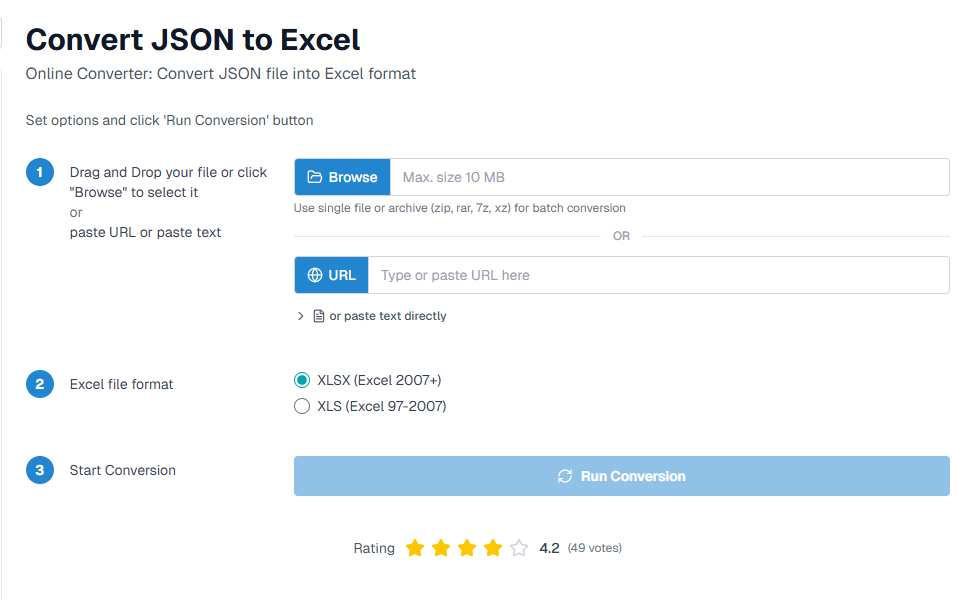
I tested a few online converters.
Steps:
- Upload JSON file
- Click convert
- Download Excel file
✅ Result:
- Fast and easy
- No setup required
❌ Problems:
- File size limits
- Privacy concerns (uploading data online)
- Some tools break nested structure
⭐ Verdict:
Best for quick, small tasks — not reliable for serious use.
Top Tools for Conversion of JSON to Excel
| Tool / Method | Platform | Highlights | Limitations |
|---|---|---|---|
| ConversionTools.io | Web | Free, no install; choose XLSX/XLS; secure, 10 MB/upload, 10/day limit (Conversion Tools) | Limits file size and daily conversions |
| Aspose.Cells (online) | Web | Convert JSON to Excel with table styles, supports various formats (Free Aspose Apps) | Requires upload; privacy considerations |
| TabLab.app | Web | Fast batch processing, handles large data, flattens nested JSON (tablab.app) | Minimal configuration options |
| MS Excel’s Get Data from JSON | Desktop (Excel) | Built-in, preview/edit via Power Query, best for Excel users (learn.microsoft.com, gigasheet.com) | Slight learning curve, manual steps |
| Impler.io (SheetJS-based) | Web (browser) | Converts locally in browser, no uploads, strong privacy (Impler.io) | One file at a time; no batch mode |
Other Popular Online Converters
JSON-CSV.com
- Free basic conversion
- Handles nested JSON structures
- Exports to both CSV and Excel formats
- Limited file size for free users
BeautifyTools JSON to Excel
- Simple drag-and-drop interface
- Real-time conversion preview
- Supports multiple output formats
- Mobile-friendly design
Convertio
- Comprehensive file conversion platform
- Batch processing capabilities
- Cloud storage integration
- Premium features for heavy users
How to Use Popular Converters
ConversionTools.io (Web)
- Go to the json to excel converter page Conversion Tools.
- Upload or drag-and-drop your JSON file (max 10 MB).
- Choose XLSX or XLS.
- Click Run Conversion and download the output.
Aspose.Cells (Web)
- Visit their online JSON to Excel tool Free Aspose Apps.
- Upload your JSON.
- Choose formatting options like table style or multiple worksheets.
- Convert and download.
TabLab.app
- Navigate to Convert JSON to Excel tool tablab.app.
- Upload JSON files in batch.
- Receive converted .xlsx results instantly—great for large datasets.
Microsoft Excel
- Open Excel → Data tab → Get Data → From File → From JSON learn.microsoft.com.
- Select your JSON file; process through Power Query Editor.
- Adjust mapping as needed, then Close & Load to insert into worksheet gigasheet.com.
Impler.io (Client-side)
- Access the tool Impler.io.
- Drag or select your JSON file.
- Conversion runs in your browser—no data leaves your device.
- Download the converted Excel file.
Tips to Keep in Mind When You Convert JSON to Excel
- File size & limits: Watch Excel’s row/column caps (XLSX: ~1M rows, ~16K columns; XLS: lower) Conversion Tools.
- Nested data complexity: Flattening deeply nested JSON might require manual adjustments or advanced tooling.
- Privacy concerns: Browser-only tools like Impler or using Excel locally are preferable for sensitive data.
- Batch vs Single conversions: Use TabLab for batch jobs; the rest are ideal for single files.
Method 3: Using Python (Advanced Method)
I also tested using Python for better control.
Basic approach:
import pandas as pd
df = pd.read_json(“file.json”)
df.to_excel(“output.xlsx”)
✅ Result:
- Works well for structured data
- Can handle larger files
❌ Problems:
- Requires coding knowledge
- Still struggles with deeply nested JSON
⭐ Verdict:
Powerful, but not beginner-friendly.
⚡ Method 4: Google Sheets (Hidden Trick)
Steps:
- Open Google Sheets
- Use an import script or extension
- Load JSON data
✅ Result:
- Works for simple data
❌ Problems:
- Not reliable
- Limited support for complex JSON
⭐ Verdict:
Not worth it unless you already use Sheets heavily.
📊 Comparison Table (Based on My Testing)
| Method | Ease | Handles Complex JSON | Best For |
|---|---|---|---|
| Excel | Medium | ❌ No | Basic files |
| Online Tools | Easy | ⚠️ Limited | Quick tasks |
| Python | Hard | ⚠️ Partial | Developers |
| Google Sheets | Easy | ❌ No | Light use |
Troubleshooting Common Conversion Issues
Handling Special Characters
JSON files often contain Unicode characters that may not display correctly in Excel. Use UTF-8 encoding settings when possible and consider character replacement for problematic symbols.
Managing Large Datasets
Excel has row limitations (1,048,576 rows in modern versions). For larger datasets, consider splitting JSON files or using alternative tools like Google
✅ Final Recommendation
If you just want a quick conversion:
👉 Use Excel or an online tool
If you want clean, accurate results:
👉 Use the Flatten → Excel method
FAQs
1. What is the easiest way to convert JSON to Excel?
The easiest way is to use an online json to excel converter. Just upload your JSON file, choose XLSX or XLS format, and download the converted file in seconds.
2. Can I convert JSON to Excel without installing software?
Yes. Online converters like ConversionTools.io or browser-based solutions like Impler.io allow you to convert directly in your browser without installation.
3. Is the conversion of JSON to Excel safe?
Most reputable converters ensure file deletion after processing. For maximum privacy, use local methods such as Microsoft Excel’s Get Data from JSON feature or client-side tools like Impler.io, which never upload your data.
4. Can Excel open JSON files directly?
Not directly. You need to use the Get Data → From File → From JSON option in Excel’s Power Query tool to import JSON and map it into a tabular structure.
5. What if my JSON file is too large?
For large files, try TabLab.app, which supports batch processing and handles big JSON data more efficiently than typical converters.
6. Does the formatting remain the same after conversion?
Not always. JSON data structures are hierarchical, while Excel uses a tabular layout. Some nested or complex JSON data may need manual adjustments after conversion.
7. Can I batch convert multiple JSON files into Excel?
Yes, some tools like TabLab and desktop automation scripts allow batch conversion of multiple JSON files into Excel.
8. Which format is better for conversion—XLS or XLSX?
XLSX is the recommended format because it supports more rows/columns, better performance, and compatibility with modern Excel versions.