Have you ever saved an image from the web only to find it’s in a strange format called WebP? You’re not alone. While WebP is a fantastic format for websites, it can be a real headache when you need to share, print, or archive it. This is where converting from WebP to PDF becomes a game-changer.
This guide will walk you through everything you need to know about the WebP to PDF conversion process. We’ll explore why you might need to make this switch, how different tools handle the job, and introduce you to a seamless solution for all your conversion needs. By the end, you’ll understand why PDF is often the superior choice for your images and how to make the change effortlessly.
What is WebP and Why Does It Exist?
Before we dive into the conversion, let’s quickly understand the file formats we’re dealing with.
WebP is a modern image format developed by Google. Its main goal is to make the web faster. It does this by creating smaller image files than traditional formats like JPEG and PNG, but without a noticeable loss in quality. Smaller files mean websites load quicker, which is great for user experience and SEO.
So, if WebP is so great, why would you ever need to convert it? The problem lies in its compatibility. While most modern web browsers support WebP, many other applications do not. Image viewers, presentation software, and older operating systems often struggle to open or recognize these files. This is where the universal compatibility of PDF comes in.
Why Convert WebP to PDF?
Converting your WebP files into a PDF document might seem like an extra step, but it offers a host of benefits that make it worthwhile. The PDF (Portable Document Format) was designed for one primary purpose: to present documents consistently, regardless of the software, hardware, or operating system being used.
Here’s why converting from WebP to PDF is often the smartest move
1. Universal Accessibility and Sharing: The number one reason to convert is compatibility. Have you ever tried to email a WebP image to a colleague, only for them to say they can’t open it? It’s a common issue. PDFs, on the other hand, can be opened by virtually anyone on any device. Adobe Acrobat Reader is free and ubiquitous, and most modern browsers can open PDFs natively. Converting ensures your images are viewable by everyone, every time.
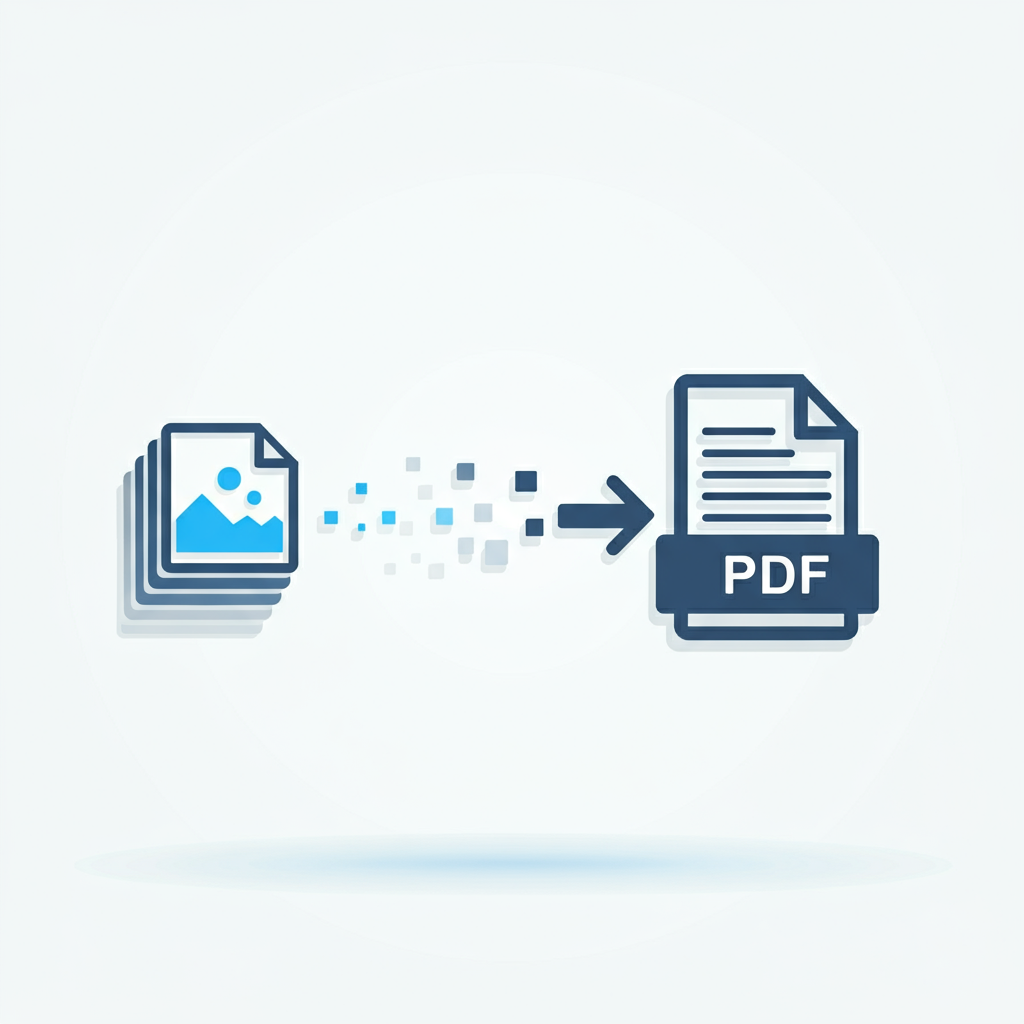
2. Combining Multiple Images into One File: Imagine you have a series of WebP images from a project, a photo shoot, or a set of scanned documents. Sending them as individual files can be clumsy and lead to them being viewed out of order. By converting your WebP files to a single PDF, you can compile them into one organized, easy-to-navigate document. This is perfect for creating portfolios, reports, or photo albums.
3. Preserving Image Quality for Printing: WebP is optimized for screens, not for print. When you need a high-quality physical copy of an image, PDF is the industry standard. The format preserves the exact layout, fonts, and image data, ensuring that what you see on your screen is what you get from the printer. This makes PDF the ideal choice for professional documents and high-resolution prints.
4. Enhanced Security Features: PDFs come with built-in security options that image files lack. You can password-protect your PDF to control who can open, print, or edit it. This is crucial when you are sharing sensitive or confidential images. Converting from WebP to PDF adds a necessary layer of security to your visual data.
5. Smaller File Sizes for Archiving : While a single WebP file is small, a PDF containing multiple images can often be compressed to a manageable size without significant quality loss. This makes PDFs an excellent choice for archiving large collections of images. You can store dozens of high-quality images in a single, organized file that takes up less space than a folder full of individual JPEGs or even WebPs.
How to Convert WebP to PDF: Exploring Your Options
Now that you know the why, let’s look at the how. There are several methods for converting WebP files, each with its own pros and cons.
Using Online Conversion Tools
The quickest and most popular method is using an online converter. These web-based tools don’t require any software installation and can handle conversions in seconds.
Vinlyee’s WebP to PDF Converter
For a fast, secure, and user-friendly experience, our own tool at Vinlyee is designed to make your life easier. Here’s what makes it stand out:
Batch Conversion
Don’t waste time converting files one by one. You can upload multiple WebP images and merge them into a single PDF document in one go.
Privacy-Focused:
We understand your files are important. All uploaded images are automatically deleted from our servers after a short period, ensuring your data remains private.
High-Quality Output:
Our tool maintains the original quality of your images, so your PDF looks crisp and professional.
No Installation Needed:
Access it from any browser on any device. It’s completely free and ready when you are.
Other popular online options include tools like Zamzar and OnlineConvert, which offer a wide range of file conversion services. While effective, they may have limitations on file size or the number of daily conversions for free users.
Using Desktop Software
For those who frequently handle file conversions or require more advanced options, desktop software is a powerful alternative.
Adobe Acrobat
Adobe Acrobat is the gold standard for all things PDF. It allows you to create, edit, and manage PDFs with unparalleled control. You can easily drag and drop WebP files (and many other formats) to create a polished PDF. However, Adobe Acrobat is a premium product and comes with a subscription fee, making it more suitable for professionals and businesses.
Other Software Options
Many image editing programs and even some document viewers have built-in “Save as PDF” or “Print to PDF” functionalities. On Windows and macOS, you can often open a WebP image in a compatible viewer and use the system’s print dialog to save it as a PDF. This method works but can be clunky, especially for multiple files.
A Step-by-Step Guide to Using Vinlyee’s Converter
Ready to convert your first file? Using our WebP to PDF tool is incredibly simple. Here’s how it works:
Visit the Tool: Navigate to our WebP to PDF converter page.
Upload Your Files: Click the “Upload” button and select the WebP images from your computer. You can select multiple files at once.
Arrange Your Images: If you’ve uploaded multiple images, you can drag and drop them to arrange them in your desired order.
Convert: Click the “Convert” button and let our tool work its magic. The process takes just a few seconds.
Download: Once finished, a download link for your new PDF will appear. Click it to save the file to your device.
That’s it! In five simple steps, you have a professional, shareable PDF document.
Beyond WebP: Other Useful Conversions
Understanding file conversions can streamline many of your digital tasks. At Vinlyee, we offer a suite of tools to help you manage your files effectively. Here are a few other converters you might find useful:
While WebP serves an important purpose in making the web faster, its limitations in offline use and compatibility make PDF the superior format for sharing, printing, and archiving. Converting from WebP to PDF is a simple solution to a common problem, ensuring your images are accessible, secure, and professional.
Whether you need to compile a report, create a portfolio, or simply share a photo with someone, an online converter is your best friend. With a tool like Vinlyee’s WebP to PDF converter, you can transform your files in seconds, free of charge, and with complete peace of mind. Give it a try and experience the convenience for yourself.