Have you ever tried to open an EPUB file on your Kindle and it didn’t work? Kindle devices don’t use the common EPUB format; instead, they use Amazon’s own special formats. You need to change your EPUB to azw3 books into a format that Kindle can read, like MOBI or AZW3, before you can read them on your Kindle.
Don’t worry; it’s not as hard as it sounds. This guide will show you everything you need to know.
Why should you change EPUB files for your Kindle?
To put it simply, Kindles can’t read EPUB files. If you put an EPUB book on your Kindle, it won’t show up in your library.
You can use your device with the file after you convert it. This lets you read all of your books on your Kindle without having to buy them again from the Amazon store.
MOBI vs. AZW3: What Are the Different Kindle Formats?
There are two main types of Kindle devices that Amazon sells. Here’s a quick list to help you pick the right one.
Format | Best For | Key Features |
|---|---|---|
MOBI | If you have an older Kindle (like the Kindle Keyboard) or aren’t sure which one to use. | –An older, more reliable format. – Works with almost any Kindle. – Doesn’t have some advanced formatting options. |
AZW3 (KF8) | Kindle devices from today, such as the Paperwhite, Oasis, and Fire tablets. | – A newer, more advanced format. – Better fonts, more complicated layouts, and more styles are supported. |
If you have a newer Kindle, we recommend that you always choose AZW3. It makes reading more enjoyable. If your device is older, MOBI is a good choice.
How to Change Your EPUB Files
You have a lot of great choices for converting your files, from simple online tools to powerful desktop software. Let’s look at the best ones.
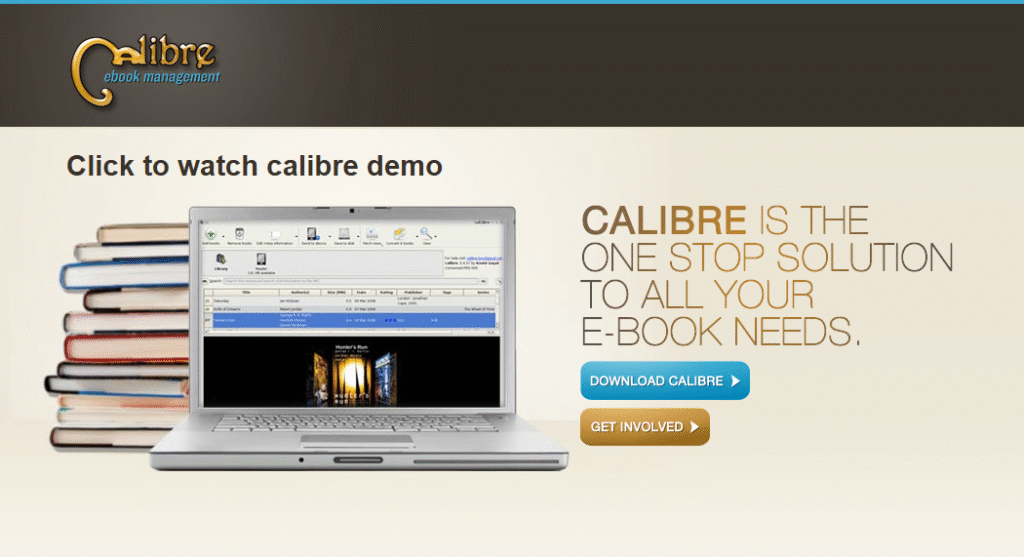
Calibre (Free Software for Your Computer)
Calibre is a great, free program that lets you easily manage your entire ebook library and change the format of your ebooks. You can use it on Windows, macOS, and Linux.
How to use it:
- Get Calibre: You can get it from calibre-ebook.com.
- Put Your Book in: To import your EPUB file, open Calibre and click the “Add books” button.
- Start the conversion: Choose your book from the library and click “Convert books.”
- Choose Output Format: In the new window’s top right corner, click the dropdown menu and choose AZW3 or MOBI.
- To convert, click “OK” at the bottom.
Find Your File: When Calibre is done, right-click on the book and choose “Open containing folder” to see the file you just converted.
Online Converters (No Installation Needed)
If you just need a quick conversion and don’t want to install software, a web-based tool is perfect.
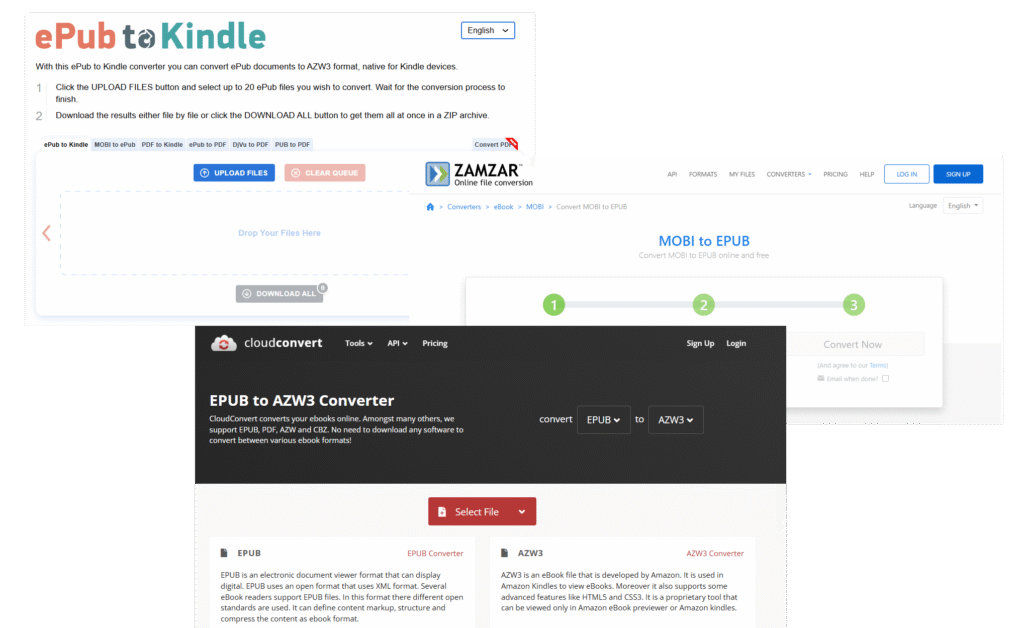
- CloudConvert: A popular and reliable choice. Just upload your EPUB, select AZW3 or MOBI as the output, and click “Convert.”
- Zamzar: Another great option that works similarly. Upload your file, choose your format, and download the result.
- Epub2Kindle: A simple, drag-and-drop site made just for this purpose.
Online converters are convenient but require an internet connection and may have file size limits.
Any eBook Converter (Paid Software for Desktop)
Any eBook Converter is a professional tool for Windows and Mac for people who need more power. It can even handle files with DRM (Digital Rights Management) and is great for converting many books at once (batch conversion).

Main Features:
Can change up to 24 different types of input.It gets rid of DRM from ebooks on Kindle, Kobo, and Nook.You can change the title, author, and cover, among other things.Please note that the free trial only lets you convert one book at a time. To use all of the features, you’ll need to buy the full version.
Transferring Your Converted Book to Your Kindle
Once you have your new MOBI or AZW3 file, you just need to move it to your Kindle. The easiest way is with a USB cable.
- Connect Your Kindle: Plug your Kindle into your computer. It will show up as a removable drive, like a USB stick.
- Find the ‘documents’ Folder: Open the Kindle drive and look for a folder named “documents.”
- Copy the File: Drag and drop your converted
.azw3or.mobifile into the “documents” folder. - Eject and Read: Safely eject your Kindle from your computer. The new book will now appear in your library!
Fixing common problems
Do you need help? Here are some quick fixes for problems that happen a lot.
Problem | Solution |
|---|---|
The file isn’t showing up on my Kindle. | Check to see that you put the file in the “documents” folder. Also, try turning your Kindle off and on again. This often helps it find new books. |
The name of the book or the author is wrong. | Before you move the file, use Calibre’s “Edit metadata” feature to fix the information. This will help you keep your library neat and tidy. |
The conversion didn’t work or is taking too long. | The file might be too big if you’re using an online tool. Instead, try using a program on your computer like Calibre. You’ll need a program like Any eBook Converter if the file has DRM. |
You can read any EPUB book on your Kindle with these tools and tips. Enjoy your reading. 🙂
Organize Your eBooks with Ease
Before or after converting your EPUB files, you might want to organize your eBooks into a single, easy-to-manage file. This is where our Merge PDF tool comes in handy. If you have multiple eBook files in PDF format, you can merge them into one cohesive document for better organization and