
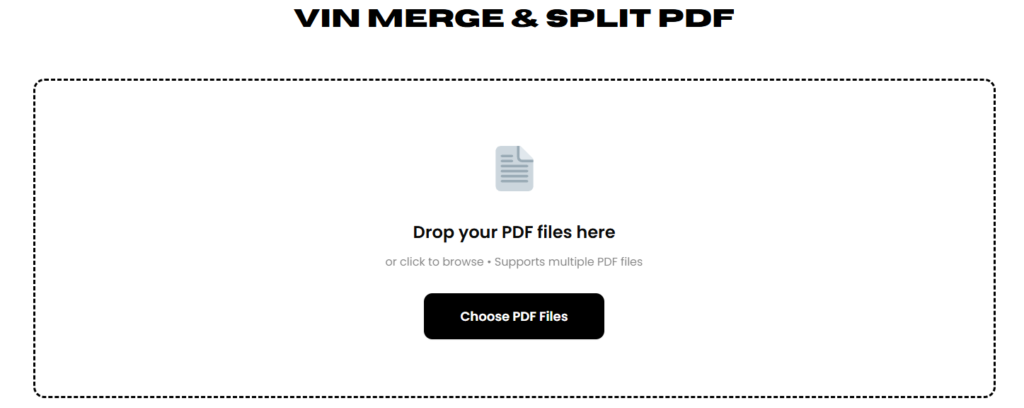
Use this free pdf combiner to merge PDFs instantly:
Digital clutter is a real productivity killer. But there is a simple digital housekeeping skill that can solve this problem instantly: learning how to combine multiple pdfs into one document. Merging your documents streamlines your workflow, makes your files easier to share, and presents a much more polished image to the world.
Whether you are a student submitting an assignment, a business owner organizing receipts, or a job hunter polishing an application, knowing how to merge PDF documents into one is essential. This guide will walk you through the most effective methods to combine pdf files free online, from built-in desktop tools to the fastest online solutions.
The Quick Fix
If you are in a rush and do not want to read the full technical guide, here is the fastest way to get your files in order. You don’t need to download heavy software or register for an account.
For those who want to master the art of file management, read on. We will cover the best online tools, native Mac and Windows solutions, and everything you need to know to combine PDF files free.
Method 1: The Easiest Way to Combine PDF Files Free Online
For most users, the quickest and most reliable method is to use a browser-based tool. You do not have to worry about operating system compatibility, and you can do it from any device, whether it’s a laptop, tablet, or smartphone.
Our top recommendation for this is the Vinlyee PDF merger tool. Unlike many other tools that bombard you with ads or require you to hand over your email address, this tool is designed for speed and privacy. It allows you to combine pdf files free without watermarks or hidden fees.
This is a client base web tool which means there is no server involved. you can merge pdfs without internet you just need to load the webpage. There is no upload no download you can put heavy files in it and they will load instantly, because everything is processing through your Desktop, Tablet or phones.
Step-by-Step Guide
Using an online tool is intuitive, but following these steps ensures you get the perfect result every time.
1. Upload Your Files
Navigate to the Vinlyee tool. You will usually see a large landing area. You can simply drag and drop your files directly from your desktop folder into this box. Alternatively, click the “Select Files” button to browse your computer. You can select multiple files at once by holding down the ‘Ctrl’ (Windows) or ‘Command’ (Mac) key while clicking.
2. Reorder Your Documents
Once your files are uploaded, you are not stuck with that order. This is a crucial step when learning how to combine two pdfs or more. If you uploaded your “Conclusion” before your “Introduction,” simply click and drag the thumbnails to rearrange them into the correct sequence.
3. Merge the Files
Once everything looks right, click the button to merge pdfs free. The tool will process the documents, stitching them together into a single, cohesive file.
4. Download
Within seconds, your new file will be ready. Click download to save it to your device.
Key Benefits of the Online Route
Why choose this method over installing software?
- Security and Privacy: Many people worry about uploading sensitive docs. However, modern tools like Vinlyee often process files locally in your browser where files never leaves your devicefor processing. This ensures your data remains private.
- Versatility: This method works on every platform. Whether you are on a Chromebook, a Windows PC, or an Android phone, the process is exactly the same.
- Cost: It is completely free. If you are searching for a combine pdf files free solution, this hits the mark without asking for a credit card.
Why You Should Merge Your PDFs
You might be thinking, “Is it really that big of a deal to send two files instead of one?” The answer is often yes. Here is why taking the time to merge pdf documents free of clutter is worth the effort.
Professionalism and Presentation
Perception matters. When you send a single, well-organized packet, it shows that you are detail-oriented. Imagine you are a hiring manager receiving fifty applications. Forty-nine of them send a single, clean PDF containing a resume and cover letter. One candidate sends two separate files that have to be downloaded and opened individually. The single file is simply easier to review.
Digital Organization
If you are managing personal finances or business records, you likely have dozens of individual invoices, receipts, and bank statements. Learning how to combine multiple pdfs into one allows you to create monthly or yearly archive files. Instead of a folder containing 100 loose files named “Invoice_1” through “Invoice_100,” you can have one neat file named “2023_Invoices.pdf.”
Streamlined Sharing
Sharing files via platforms like Slack, WhatsApp, or Microsoft Teams is standard practice today. Sending a barrage of ten notifications for ten separate files is annoying for the recipient. When you pdf combine files into one, you send one notification and one clear download link.
Efficient Printing
This is a practical benefit that saves time. If you need to print a contract, a brief, and a schedule for a meeting, opening each one and hitting “Print” is tedious. If you merge pdfs into one first, you only have to send a print command once.
Method 2: How to Combine PDFs on Mac (Preview App)
If you are a Mac user, you have a powerful tool hidden in plain sight: the Preview app. It is the default image and PDF viewer on macOS, but it also has some surprising editing capabilities.
The Process
- Open the First PDF: Double-click your first PDF file to open it in Preview.
- Enable Thumbnails: Go to the “View” menu at the top of the screen and select “Thumbnails.” You should see a sidebar appear on the left showing pages of your document.
- Drag and Drop: Locate your second PDF file in Finder. Drag this file directly into the thumbnail sidebar of the open Preview window. You can drop it at the beginning, the end, or even in the middle of the existing pages.
- Save: Once you have combined the files, go to “File” > “Export as PDF” to save your new merged document.
Pros and Cons
The biggest advantage here is that you do not need internet access. It is built-in and safe. However, it can be a bit finicky if you are trying to combine files from many different sources or if you have dozens of documents. For bulk work, an online free pdf combiner is often faster.
Method 3: How to Combine PDFs on Windows
Windows is a bit different. Unlike macOS, Windows (up to Windows 10 and 11) does not include a native PDF editing tool that allows you to merge files easily out of the box.
The Workaround
Some users try the “Print to PDF” trick. This involves opening a file, selecting “Print,” choosing “Microsoft Print to PDF” as the printer, and trying to append documents. However, this is clunky and often doesn’t work for merging different existing files.
Recommendation
Because Windows lacks a native “Preview” equivalent for merging, Windows users benefit the most from online tools. Using a combine pdf files free online tool like Vinlyee is significantly faster than hunting for third-party desktop software that might bloat your system or pester you for updates.
If you absolutely must work offline on Windows, you will typically need to purchase software or find open-source alternatives, which can be complicated to set up. For the average user, the browser is the best route to merge pdf documents free.
Method 4: Merging PDFs with Adobe Acrobat (The Paid Route)
We cannot discuss PDF manipulation without mentioning Adobe Acrobat. It is the industry standard, and if you work in a corporate environment, you might already have it installed.
The Process
In Adobe Acrobat DC:
- Open the “Tools” tab.
- Select “Combine Files.”
- Click “Add Files” and select the documents you want to merge.
- Click “Combine.”
The Downside
The major barrier here is cost. Adobe Acrobat is a premium, subscription-based product. Most students, freelancers, and small business owners searching for combine pdf files free do not want to pay a monthly fee for a feature they only use occasionally.
Comparison
When comparing Adobe to a tool like Vinlyee, the difference comes down to power versus accessibility. Adobe has advanced features like detailed editing and form creation. But if your goal is simply to combine pdf files, loading up a heavy desktop application is overkill. The online tool is lightweight, instant, and free.
Best Practices Before You Merge
Before you start dragging and dropping, a little preparation goes a long way. To ensure your final document is perfect, follow these three tips.
1. File Naming
When you upload files to a free pdf combiner, the tool often tries to order them alphabetically or numerically. If your files are named “Scan001,” “Resume_Final,” and “Cover_Letter,” the order might be random.
Rename your files clearly before uploading. Use prefixes like “01_CoverLetter,” “02_Resume,” and “03_Portfolio.” This helps the tool—and you—understand the intended sequence immediately.
2. Compression
Be mindful of file size. If you combine PDF files that are high-resolution (like scanned images or portfolios with graphics), the final merged file could be massive. A 50MB PDF is difficult to email and may be rejected by some application portals.
After you merge pdfs into one, check the file size. If it is too big, you may need to use a PDF compression tool to shrink it down to a manageable size without losing readability.
3. Security Check
Are any of your files password-protected? If you are trying to merge a bank statement that requires a password to open, most pdf combine files tools will fail. The software cannot bypass the encryption to merge the pages. You must unlock the PDF and save a compelling, unsecured version before attempting to combine it with other documents.
FAQ: Common Questions About PDF Merging
Is it safe to use an online merger?
Generally, yes. Reputable tools process your files securely. If you are using a tool like Vinlyee, the processing happens in the browser or via secure temporary servers, meaning your documents aren’t being permanently stored or read by humans.
Can I split them later?
Absolutely. Just as you can merge pdfs free, you can also split them. The same tool usually offers a “Split” function that allows you to extract specific pages from a large document.
Does merging reduce quality?
Merging documents usually keeps the text and image quality exactly the same as the originals. However, if the tool has an “auto-compress” feature, you might see a slight reduction in image sharpness.
How to combine two pdfs on iPhone?
Mobile devices do not always have easy native file management. The best way to combine two pdfs on an iPhone or Android is to use your mobile browser (Safari or Chrome) to visit an online PDF merger. The interface is responsive and works just like it does on a desktop.
Managing digital documents doesn’t have to be a headache. While the chaos of multiple email attachments and scattered files is a common problem, the solution is readily available. You have options ranging from native Mac tools to premium software like Adobe, but for speed, cost, and ease of use, the online route reigns supreme.
Learning how to combine multiple pdfs into one is a small skill that pays big dividends in organization and professionalism. Whether you are merging invoices for tax season or combining a creative portfolio, a clean, single file is always better than a messy folder.
Don’t let digital clutter slow you down. Take control of your documents today.





5 thoughts on “Combine PDF Files Free Online — Effortless & 100% Secure”
This is gold
This is pure wisdom
Love this message
Love this 😊 so much
A really good blog and me back again.