
There is a lot of visual content on the internet. When billions of pictures are uploaded every day, it can feel like looking for a needle in a digital haystack to find the exact image you need. It’s no longer a niche skill for developers, marketers, and content creators to be able to navigate this huge visual landscape. It’s a core competency. It’s very important to know how to use modern image search techniques for everything from checking sources and finding copyright violations to studying your competitors’ strategies and keeping your digital asset libraries organised.
Finding a picture is only part of what makes an image search work. It’s about knowing how the search works, from basic text-based queries to advanced AI. Using the right method can save you hours of work, help you find useful information, and make sure you’re using visual assets legally and well.
This guide will take you through the history of image search, from the old-fashioned metadata methods to the cutting-edge AI algorithms that “see” and “understand” images today. We’ll look at how different search methods work, when to use them, and give you a hand-picked list of the top 10 tools to add to your workflow. When you’re done, you’ll know everything there is to know about image search, which will improve your digital strategy.
The Evolution of Search: Classical Methods
Before search engines could “see” images, they had to rely on text. The earliest methods of image retrieval were entirely dependent on the words surrounding a visual asset.
Text-Based Image Retrieval (TBIR)
Text-Based Image Retrieval (TBIR) was the foundational approach to organizing the visual web. This method indexed images based on associated text, such as:
- Filenames:
beach-sunset.jpg - Alt-tags:
alt="A golden sunset over a calm ocean beach" - Captions and surrounding text: The paragraphs or titles appearing next to the image on a webpage.
This system was simple but effective for basic queries. If you searched for “dog playing fetch,” the engine would look for images with filenames, tags, or descriptions matching those keywords.
Metadata and Tagging
As digital asset management systems grew, manual tagging became a standard practice. Photographers, stock photo agencies, and webmasters would manually assign keywords (tags) to each image to describe its content, style, and mood. A single image could have dozens of tags, such as “business,” “office,” “teamwork,” “collaboration,” and “meeting,” to increase its discoverability.
Top 10 Tools for Image Search
Here is a carefully chosen list of the best tools, from big companies to niche platforms.
Google Lens and Google Images:
The clear industry standard. Google Images is great for both searching for keywords and searching for images that are the opposite of what you want. Google Lens goes a step further by using AI to identify objects, text, and products in real time.

Bing Visual Search:
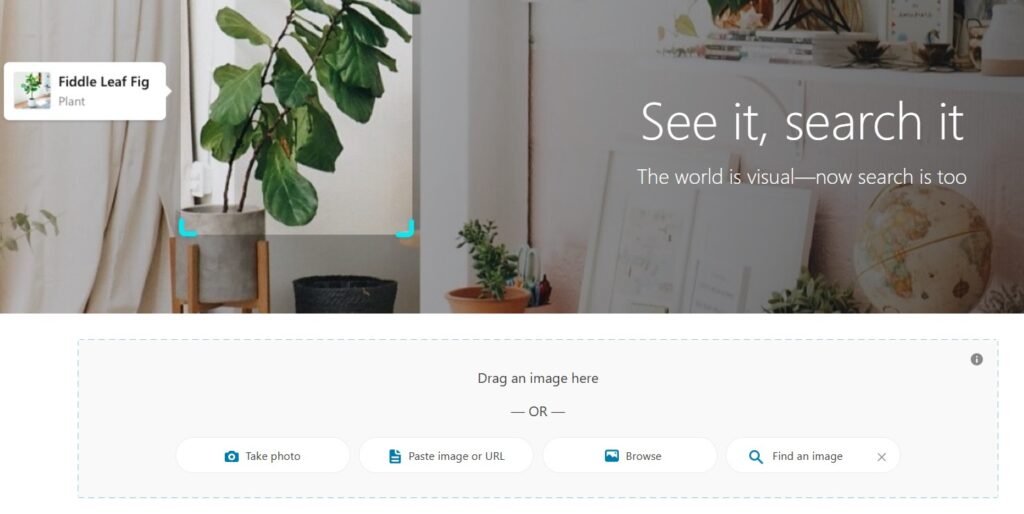
Bing is a strong competitor to Google. Its “search within an image” feature, which lets you crop out a part of an image to search for just that object, is one of the best things about it.
Yandex:
Many people know this Russian search engine for its great facial recognition abilities. Even though it’s powerful, users should be aware of the privacy issues that come with uploading pictures of people.

Pinterest:
Pinterest is more than just a social media site; it’s a visual search engine. Using an image-first search model, it’s the best tool for finding creative ideas, products, and aesthetic inspiration.

The Experts
TinEye:
SauceNAO
Stock and free resources
Openverse:
Unsplash and Pexels:
Tools for technical and forensic work
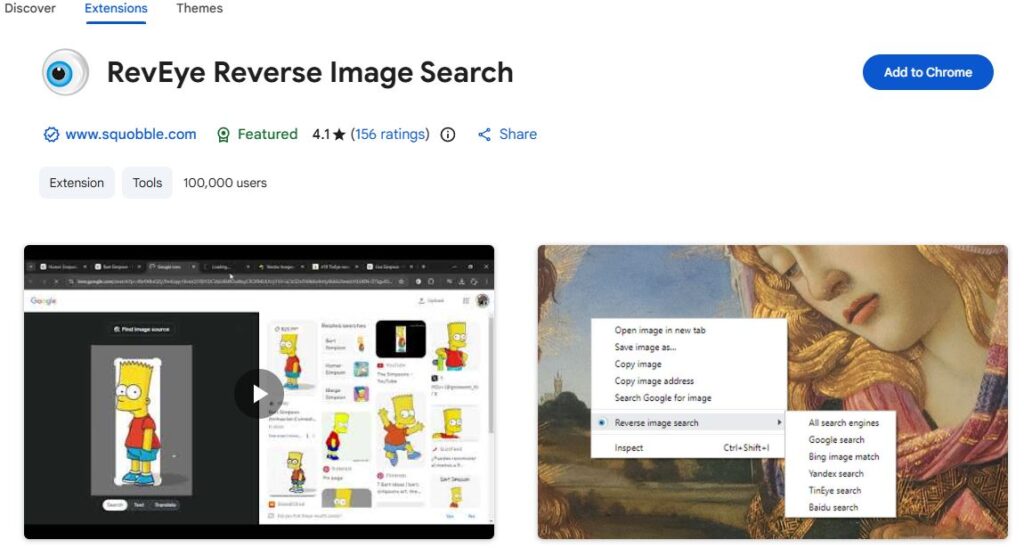
RevEye (Add-on for Browsers)
A must-have for people who use a lot of power. With this extension, you can right-click on an image and search for it on several search engines at once, such as Google, Bing, Yandex, and TinEye.

Berify
Berify is a service that helps you find stolen photos and videos. Berify uses its own unique algorithms to search the web and let creators know if their work is being used without their permission. It’s a paid service that is meant for professionals.
Hashing and Fingerprinting
Search engines use hashing to handle billions of images quickly and easily. A hash is a unique digital “fingerprint” that is made by an algorithm for each image. This lets the system quickly find duplicate or almost duplicate images by comparing their fingerprints, which is much faster than looking at the full pixel data each time. This is an important part of how reverse image search works.
A closer look at reverse image search techniques
Reverse image search lets you find information about an image online by using the image itself instead of text. You can upload an image file or give the search engine a URL, and it will give you images that look like the one you uploaded, websites where the image appears, and other useful information.
A closer look at reverse image search techniques
Reverse image search lets you find information about an image online by using the image itself instead of text. You can upload an image file or give the search engine a URL, and it will give you images that look like the one you uploaded, websites where the image appears, and other useful information.
Common Uses
Reverse image search is a very useful tool that can be used in many ways:
- Checking for Authenticity: If you see a photo used in a different context, you can prove that it’s not real news or a fake social media profile.
- Finding Sources: Find out who made an artwork, photo, or meme in the first place.
- Tracking Copyright Infringement: Artists and photographers can find out where their work is being used online without their permission.
- Finding Higher-Resolution Versions: Look for a higher-quality version of an image to use in a project or presentation.
- Identifying Products: Figure out where to buy a piece of furniture, clothing, or something else from a picture.
Is it possible to do a reverse image search on a phone?
Yes, it’s easy to do a reverse image search on both iOS and Android.
For people who use Android and Google Chrome:
- In your Chrome browser, go to the image you want to look for.
- Press and hold the image until a menu pops up.
- Click on “Search image with Google.”
- The results will show you images and pages that look like the one you searched for.
For people who use iOS and Google Chrome or Safari:
- For Chrome, do the same things you did for Android.
- You can save the picture to your photo library in Safari and then upload it to a reverse image search engine like images.google.com or TinEye.
- If you have the right app, you can also click the “Share” button and look for a “Search Image” option.
Google Lens is a separate app or part of the Google app that lets you search with your camera in real time.
Search for an image in reverse HEIC: A common problem
A lot of people have problems when they try to reverse image search pictures taken with an iPhone. By default, Apple devices save photos in the High-Efficiency Image Container (HEIC) format. This format saves space, but not all web platforms and search tools support it yet.
You might get an error if you try to upload a .heic file to some reverse image search engines. Here are the answers:
Change the File: Changing the HEIC file to a format that is more widely used, like JPG or PNG, is the easiest way to fix it. You can do this with our free online HEIC TO PNG or HEIC TO JPEG converters or built-in tools on a Mac (Preview > Export).
Change the settings on your iPhone: To avoid this problem in the future, you can change the settings on your camera to take pictures in JPG format. Select “Most Compatible” under Settings > Camera > Formats.
Use a tool that helps: Some modern tools, like Google Images, are getting better at working with HEIC. Try a different tool before converting if one doesn’t work.
The AI Revolution: “Ask AI” and Generative Search
The latest evolution in image search is the integration of multimodal AI and generative models. This technology goes beyond finding similar images; it allows for a conversational dialogue about the content within an image.
“Ask AI” Image Search
“Ask AI image search” describes the process of uploading an image to a conversational AI (like ChatGPT-4, Google Gemini, or Claude) and asking it questions. The AI uses its visual understanding to provide detailed answers. For example, you could:
- Upload a photo of a plant and ask, “What type of plant is this and how do I care for it?”
- Share a screenshot of a complex chart and ask, “Summarize the key trends in this data.”
- Show a picture of a landmark and ask, “What is the history of this building?”
Generative Integration
This technology is not just finding existing information; it’s synthesizing new answers based on visual inputs. For example, you could upload a photo of the ingredients in your fridge and ask for a recipe. The AI doesn’t search for a webpage with that exact combination; it generates a new recipe for you on the spot. This fusion of visual recognition and generative language is creating powerful new possibilities for interacting with information.
When to Use Each Image Search Technique
With several methods available, choosing the right one depends on your goal.
- Use Metadata/Keyword Search When… you are looking for a general concept or stock photography. This is best for broad queries like “team celebrating a victory” or “futuristic city skyline.” It’s your go-to for finding images to illustrate an idea.
- Use Reverse Image Search When… you have a specific image and need to know more about it. This is the perfect technique for verifying a source, finding a higher-quality version, or checking for copyright usage.
- Use AI/Visual Search When… you need to identify an object, translate text, or get detailed information from within an image. This method shines when you want to understand the content of a picture, not just find copies of it.
Making a Future Possible with Pictures
The fact that image search has come so far, from simple keyword tags to complex neural networks that talk to us about pictures, shows how quickly technology is moving forward. We used to tell computers what an image showed. Now we ask them what it means. The future points to even more integration with video, augmented reality, and real-time visual analysis, where search becomes an instant and seamless part of how we see the world.
It’s time to look over your own work flow. Are you still only using old-fashioned keyword searches? Are you not getting the benefits and insights that modern tools can give you? Try one of the new AI-driven platforms from the list above to see how well you can do. Learning these image search tips will not only help you work faster, but it will also give you an edge in a digital world that is becoming more visual.